Create Data API
To help developers easily dock interfaces and conveniently view API information published through TapData, we offer a data services feature.
Supported Data Sources
Currently, it supports Doris, MongoDB, MySQL, Oracle, PostgreSQL, SQL Server, and TiDB.
Procedure
-
Log in to TapData Platform.
-
In the left navigation bar, choose Data Services > API List.
-
Click Create API at the top right of the page, then complete the settings on the right panel according to the instructions below.
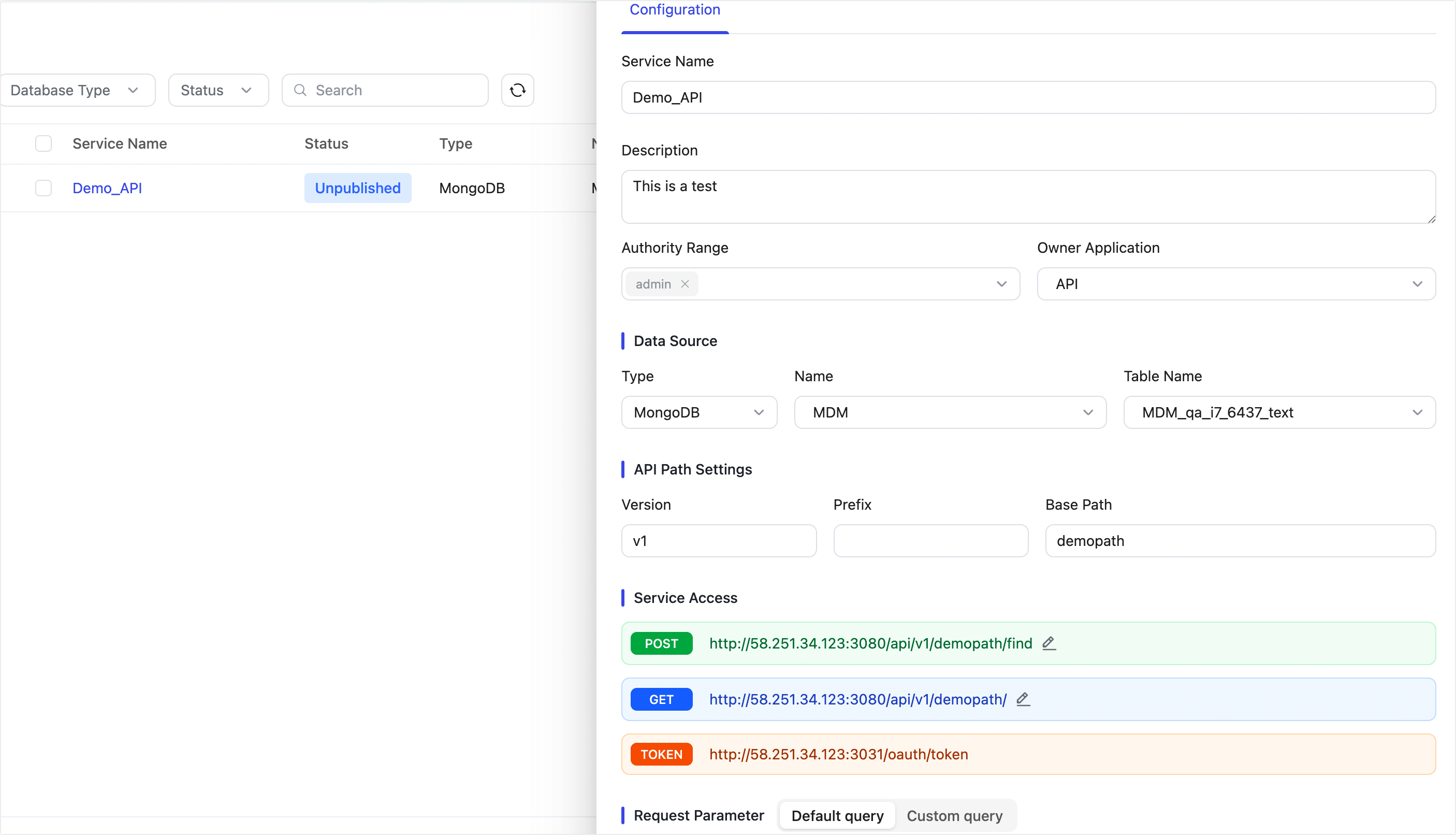
- Key Configuration Fields
- Service Name: Give your API a meaningful name for easier identification and management.
- Owner Application: Select the business application this API belongs to. This helps categorize your APIs clearly. See Application Management for more details.
- Interface Type: TapData provides two modes for querying data via APIs:
- Default Query: A general-purpose mode with built-in pagination and filtering, suitable for client-driven access.
- Custom Query: A structured mode that enables domain-specific APIs with full control over query logic, sorting, and inputs.
- API Path Settings: Your API path follows the format
/api/{version}/{prefix}/{base_path}.versionandprefixare optional and can be used for versioning or business labeling (e.g.,/api/v1/orders/summary).base_pathis required and uniquely identifies the endpoint. It is auto-generated if left blank.
- Input Parameters: Define the parameters clients can pass when calling this API.
- For Default Query, the platform automatically includes three built-in parameters:
page,limit, andfilter. This allows dynamic pagination and filtering by the client; custom parameters are not supported. - For Custom Query, you can define your own parameters (such as
region,startDate, oruserLevel), and map them to specific filter or sort conditions in the UI. In this mode, all filtering is managed server-side; thefilterparameter is not included unless you explicitly add it. For supported types and configuration rules, see API Query Parameters.
- For Default Query, the platform automatically includes three built-in parameters:
- Output Results: By default, the response will include all fields of the selected object. You can also manually adjust the response to return only specific fields, assign aliases to fields, or apply data masking rules.
- Key Configuration Fields
-
Click Save at the top right of the page.
-
Find the service you just created and click Publish on its right to use the related service.
-
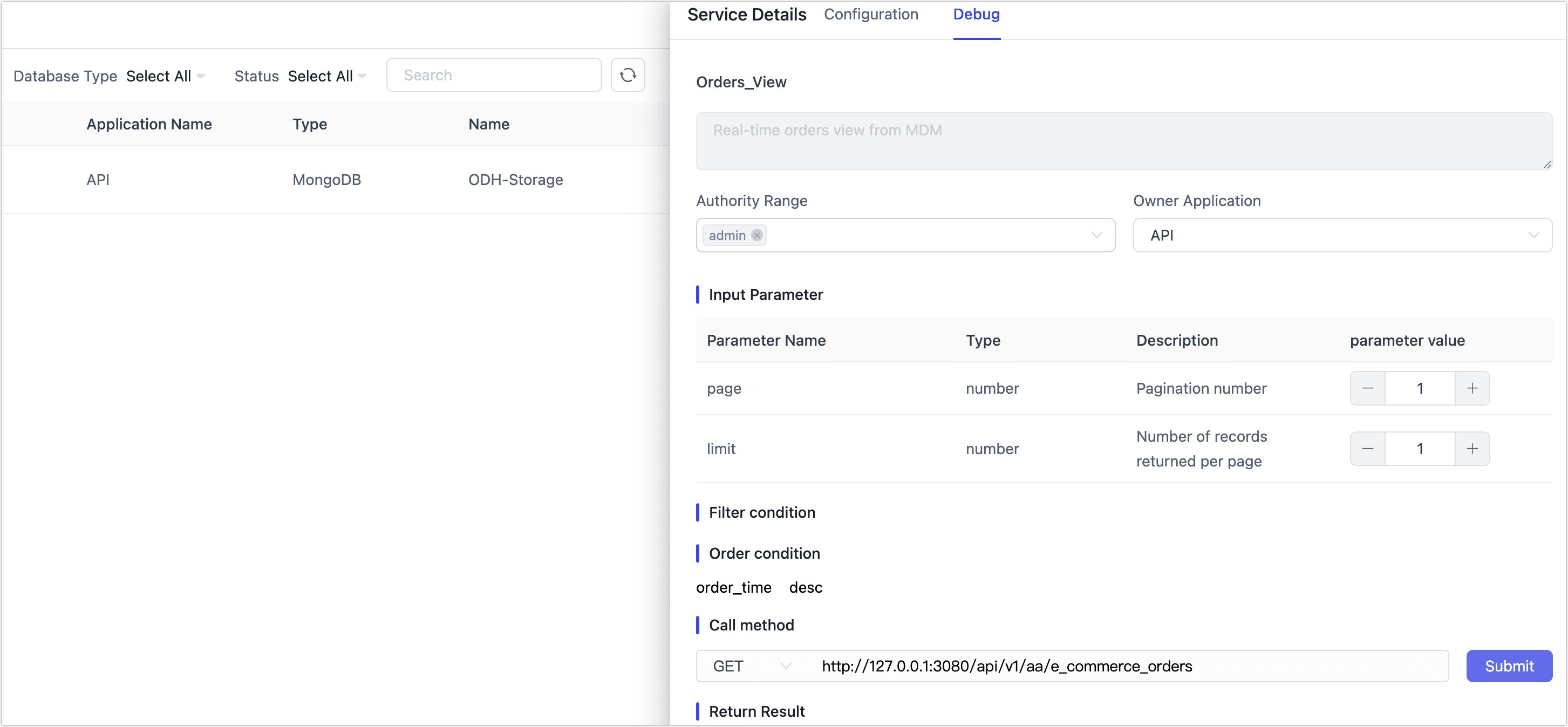
(Optional) Click the service you just created, select the Debug tab in the right panel, enter request parameters, and click Submit to verify service availability.
-
(Optional) For existing data services, you can duplicate, select/export them for backup or to share with other team members. You can also import data services as needed.

Additionally, for published data services, you can select them and click API Document Export to quickly establish API usage documentation within the team. The exported Word file is in docx format and includes data service name, API description, GET/POST parameter descriptions.