Snowflake
Snowflake is a fully managed, cloud-native data warehouse that provides elastic compute and storage. TapData provides a Snowflake connector that can use Snowflake as a source or target. Use it to centralize data from multiple sources in the cloud and support cloud data warehouses, data sharing, and analytics workloads.
Supported versions
All Snowflake versions that support JDBC connections.
Supported data types
| Category | Data types |
|---|---|
| Integer | BIGINT |
| Numeric | NUMBER, FLOAT, DECFLOAT |
| String | TEXT, UUID |
| Binary | BINARY, FILE |
| Boolean | BOOLEAN |
| Date and time | DATE, TIME, TIMESTAMP_NTZ, TIMESTAMP_TZ, TIMESTAMP_LTZ |
| Semi-structured | OBJECT, ARRAY, VARIANT |
| Geospatial | GEOGRAPHY, GEOMETRY |
DECFLOAT, UUID, TIMESTAMP_LTZ, VARIANT, GEOGRAPHY, and GEOMETRY are recognized only on the query side. This means that the connector can identify and read these types, but you should not rely on automatic table creation or writes for them. When Snowflake is used as the target and a field type is not supported for writes or the automatically created table does not match your expectations, convert the field to a compatible type in the task field mapping.
Supported sync operations
- DML: INSERT, UPDATE, DELETE
- DDL: Snowflake does not support DDL collection when used as a source. When Snowflake is used as the target, and the upstream task produces the corresponding schema change events, TapData can handle automatic table creation and field-level changes, including adding fields, renaming fields, changing field attributes, and deleting fields.
- When Snowflake is used as a source, incremental sync is supported through field polling. Log-based CDC, Snowflake Stream, Change Tracking, and DDL collection are not supported. For field polling configuration, see Change Data Capture (CDC).
- When Snowflake is used as a target, you can configure DML write policies in the node advanced settings. For example, you can convert insert conflicts to updates or ignores, and convert updates with no matching records to inserts or log entries.
Considerations
- Reading data from Snowflake or running field-polling incremental sync consumes compute resources from the selected Snowflake Warehouse. We recommend using a dedicated Warehouse for sync tasks to avoid resource contention with business queries.
- The connector currently discovers and syncs physical tables. Views are not treated as syncable table objects.
- When Snowflake is used as the target and TapData creates the target table automatically, it creates a standard table by default. To use hybrid tables or dynamic tables, first confirm that your scenario meets the Snowflake requirements for the corresponding table type. For more information, see Advanced node features.
Before you begin
-
Make sure the server where TapData is deployed can access the Snowflake service through the
*.snowflakecomputing.comdomain and port 443. -
Log in to Snowflake and run the following commands to create a user and role for data synchronization.
-- This example creates a user for password authentication.
-- Replace role_name, username, password, warehouse_name, database_name, and schema_name with your actual values.
CREATE ROLE IF NOT EXISTS <role_name>;

CREATE USER <username>
   PASSWORD = '<password>'
   DEFAULT_ROLE = <role_name>
   DEFAULT_WAREHOUSE = <warehouse_name>
   DEFAULT_NAMESPACE = <database_name>.<schema_name>
   MUST_CHANGE_PASSWORD = FALSE;

GRANT ROLE <role_name> TO USER <username>;
To use a PAT or key-pair authentication, prepare the corresponding credentials for the user in Snowflake and make sure the user still has the following roles and permissions. If you use a PAT, also confirm that your Snowflake account meets the network policy or authentication policy requirements for programmatic access tokens. If you use key-pair authentication, make sure the user has a public key configured in Snowflake. In TapData, provide the private key and, if used, the private key password.
-
Grant permissions to the user. You can also apply more granular permissions based on your business requirements.
- As a source
- As a target
-- Replace warehouse_name, database_name, schema_name, and role_name with your actual values.

-- Grant access to the compute resource, database, and schema
GRANT USAGE ON WAREHOUSE <warehouse_name> TO ROLE <role_name>;
GRANT USAGE ON DATABASE <database_name> TO ROLE <role_name>;
GRANT USAGE ON SCHEMA <database_name>.<schema_name> TO ROLE <role_name>;

-- Grant query permissions on existing and future tables in the schema
GRANT SELECT ON ALL TABLES IN SCHEMA <database_name>.<schema_name> TO ROLE <role_name>;
GRANT SELECT ON FUTURE TABLES IN SCHEMA <database_name>.<schema_name> TO ROLE <role_name>;
-- Replace warehouse_name, database_name, schema_name, and role_name with your actual values.
-- Grant access to the compute resource, database, and schema
GRANT USAGE ON WAREHOUSE <warehouse_name> TO ROLE <role_name>;
GRANT USAGE ON DATABASE <database_name> TO ROLE <role_name>;
GRANT USAGE ON SCHEMA <database_name>.<schema_name> TO ROLE <role_name>;
-- Grant permission to create tables in the schema (used for automatic table creation during sync)
GRANT CREATE TABLE ON SCHEMA <database_name>.<schema_name> TO ROLE <role_name>;
-- Optional: grant dynamic table creation permission if target tables need to be created as dynamic tables
GRANT CREATE DYNAMIC TABLE ON SCHEMA <database_name>.<schema_name> TO ROLE <role_name>;
-- Grant DML permissions on existing tables in the schema (TRUNCATE is used for full refresh scenarios)
GRANT SELECT, INSERT, UPDATE, DELETE, TRUNCATE
ON ALL TABLES IN SCHEMA <database_name>.<schema_name>
TO ROLE <role_name>;
-- Grant DML permissions on future tables to ensure new tables can be written without re-authorization
GRANT SELECT, INSERT, UPDATE, DELETE, TRUNCATE
ON FUTURE TABLES IN SCHEMA <database_name>.<schema_name>
TO ROLE <role_name>;tipIf you use hybrid tables, follow the permission model of your Snowflake account. Some accounts use the
CREATE TABLEprivilege to control hybrid table creation. After the Snowflake 2026_02 behavior change is enabled, you might need to grant theCREATE HYBRID TABLEprivilege separately. If you use dynamic tables, the role that creates the dynamic table must also have query permission on the base tables or views referenced by the dynamic table query and must be able to use the specified Warehouse. To apply field-level DDL changes to existing target tables, make sure the sync role has the required permissions to modify the table schema.
Connect to Snowflake
-
Log in to TapData platform.
-
In the left navigation bar, click Connections.
-
On the right side of the page, click Create.
-
In the pop-up dialog, search for and select Snowflake.
-
On the page that redirects, fill in the Snowflake connection information as described below.
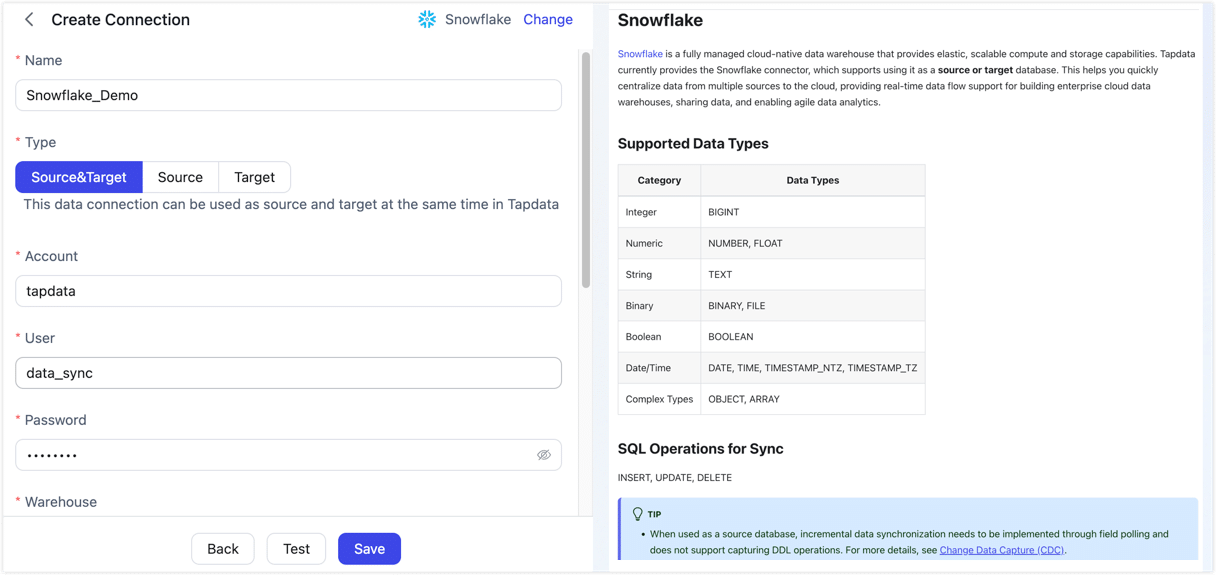
-
Basic settings
- Name: Enter a meaningful and unique name.
- Type: Snowflake can be used as a source or target database.
- Account: The Snowflake account identifier. For how to obtain it, see the Snowflake documentation.
- User: The Snowflake username with connection privileges.
- Authentication Method: Select the authentication method for connecting to Snowflake. Supported methods include Password, PAT Token, and Key Pair.
- Password: If you select Password, enter the password for the username.
- PAT Token: If you select PAT Token, enter the token that you created in Snowflake.
- Private Key and Private Key Password: If you select Key Pair, upload or enter the private key. If the private key is password-protected, enter the private key password.
- Warehouse: The name of the compute warehouse to use for the connection.
- Database: The name of the database to connect to.
- Schema: The schema name in the database. Defaults to PUBLIC. Manually modify it if you need to use another schema.
- Role: Optional. If left empty, the default role configured for the user in Snowflake will be used.
- Timezone: The default timezone is UTC+0. Changing this value affects fields that do not include timezone information.
-
Advanced settings
- Include Tables: By default, all tables are included. You can choose to customize and specify the tables to include, separated by commas.
- Exclude Tables: When enabled, you can specify tables to exclude, separated by commas.
- Agent Settings: The default is Platform automatic allocation. You can also manually specify an Agent.
- Model Load Time: If the data source contains fewer than 10,000 models, TapData updates the schema every hour. If the data source contains more than 10,000 models, TapData refreshes the schema once per day at the time you specify.
-
-
Click Test at the bottom of the page. After passing the test, click Save.
tipIf the connection test fails, follow the prompts on the page to fix the issue.
Advanced node features
When Snowflake is used as the target node in a data replication or transformation task, you can select the target table type for automatic table creation by table in the node advanced settings. This setting mainly affects target tables that TapData creates automatically. If the target table already exists, TapData keeps the current target table definition.
| Configuration | Description |
|---|---|
| Table Type | The table type used when TapData creates the target table. Supported values are Standard Table (STANDARD, default), Hybrid Table (HYBRID), and Dynamic Table (DYNAMIC). Standard tables are suitable for most sync write scenarios. Hybrid tables require a primary key and are suitable for scenarios that need primary-key updates and point queries. After creating a hybrid table, TapData attempts to create non-primary-key indexes. If index creation fails, handle the indexes manually in Snowflake. Dynamic tables are defined by a query and are not suitable as ordinary targets for INSERT, UPDATE, and DELETE writes. |
| Target Lag | Takes effect only when Table Type is set to Dynamic Table. Sets the target lag for the dynamic table. The default value is 1 minute. You can also enter values such as DOWNSTREAM by following Snowflake syntax. |
| Dynamic Table Query | Takes effect only when Table Type is set to Dynamic Table. Enter the AS SELECT query that defines the dynamic table content. This setting is required when you use a dynamic table, and the query must meet Snowflake dynamic table requirements. |
FAQ
- Q: How do I troubleshoot a failed connection test?
A: First, make sure the server where TapData is deployed can access the
*.snowflakecomputing.comdomain and port 443. Then check whether the account identifier, username, authentication credentials, Warehouse, database, schema, and role are correct. If you use a PAT or key-pair authentication, make sure the credentials are configured in Snowflake and are available. - Q: What should I do if field types or automatically created tables do not match my expectations? A: First, check whether the source field type is listed in Supported data types. For types that can be recognized on the read side but might not be suitable for direct table creation on the write side, convert the fields to Snowflake-compatible target types in the task field mapping. If the target table requires a specific table type, field definition, or constraint, you can manually create the table before synchronization.