Replicate Data from Sources
Learn how to set up real-time data replication from your source systems into the FDM (Platform Cache) layer using Tapdata’s flexible, CDC-powered engine. This ensures your business always works with fresh, reliable data—without burdening production databases.
Why Use the FDM Layer?
The FDM (Federated Data Management) layer acts as a high-performance, real-time cache for your most critical business data.
- Decouples analytics and downstream processes from production databases
- Boosts security and performance by limiting access to sensitive source systems
- Enables scalable, flexible data delivery for multiple teams and use cases
Tapdata’s replication is powered by Change Data Capture (CDC) technology, allowing you to sync data with low latency and minimal impact on source systems. Tapdata supports a wide range of popular databases and cloud data sources—so you can unify your data, no matter where it lives.
Prerequisites
Before you start, make sure you’re set up for a smooth experience:
- ODH mode is enabled on your Tapdata workspace.
- Your source database connections are configured and tested, for details, see Connect Data Sources.
- Your source tables must have a primary key or unique index.
Procedure
-
Log in to TapData Platform.
-
In the left sidebar, select Real-time Data Center.
-
On this page, you’ll see all connected data sources, displayed across four platform layers for clear governance and data flow management.
For details on each layer, see ODH Architecture Overview.
-
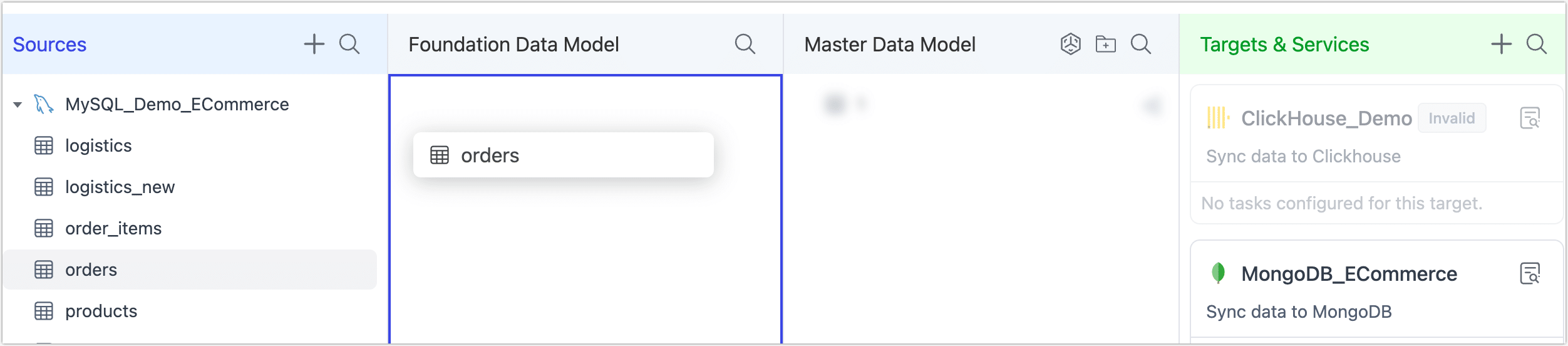
In the Source Data Layer, find the database and tables you want to replicate. Or use the
 icon to search, then drag the desired table(s) to the Platform Cache Layer.
 Alternative Approach
You can also replicate data using the traditional Data Replication approach, which provides more granular control over source-to-target configurations and processing nodes. However, the FDM layer approach shown here is specifically optimized for building an operational data hub with standardized naming and governance.
-
In the configuration dialog, set a table prefix and choose the replication mode (Full and Incremental Sync or Full Sync).

Tapdata automatically generates the FDM-layer naming pattern for you, which typically includes the
FDM_prefix plus your table name. Here you can add your source system identifier to make it easier for business teams to recognize the origin of the data.For more naming best practices, see Plan Your Operational Data Hub.
-
Click Save & Run to immediately start the replication.
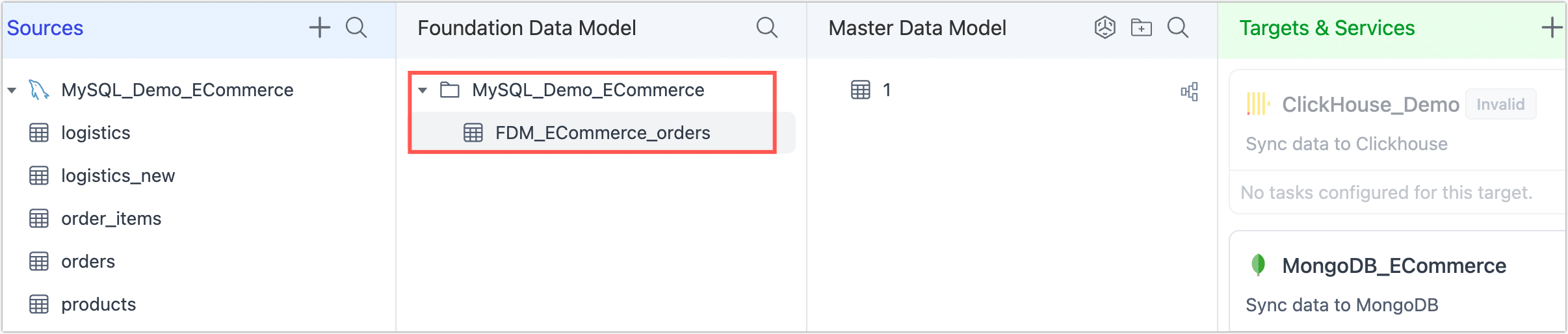
Tapdata will automatically create and launch a real-time replication task, continuously syncing your selected tables into the FDM (Platform Cache) Layer with built-in validation.
To monitor the task, click the
 icon next to the table name—this opens the job monitoring page with live status and performance metrics.
 tip
tipWhen multiple tables are selected from the same database source, Tapdata will group them into a single replication task by default. This makes it easier to manage schema changes and monitor task status consistently.
Tapdata also helps keep things organized by automatically creating a folder in the Platform Cache named after your source connection. Your new replication task will appear inside this folder, making it easier to manage and find related tables from the same source.
If you want to rename the folder, simply hover over it, click the vertical three-dot (⋮) icon, and select Edit to change its name.
Need more control? If you want to adjust advanced options—like read concurrency, batch size, hash-based sharding (for splitting large tables during full sync), or index replication—click Only Save instead of Save & Run. After saving, locate your new task in the list, click its name, and configure these settings before running it.